


What the server stores
Ciphertext. That's it.
Opaque AES-256-GCM output. No coin names, no amounts, no cost basis. A stolen database is a stolen blob — attacker still has no key.
Starting…
Client-side encrypted — zero-knowledge by design
StealthLedger is a private portfolio tracker for crypto and cash — one screen for what you actually own. Your holdings are sealed with AES-256-GCM in your browser; the server stores an opaque blob it has no key to open.
Invite-only Signups need a one-time code from someone who already has one.
The whole idea, in one picture
Same data. Two views. The one on the left is the only one that ever leaves your device.
Opaque AES-256-GCM output. No coin names, no amounts, no cost basis. A stolen database is a stolen blob — attacker still has no key.
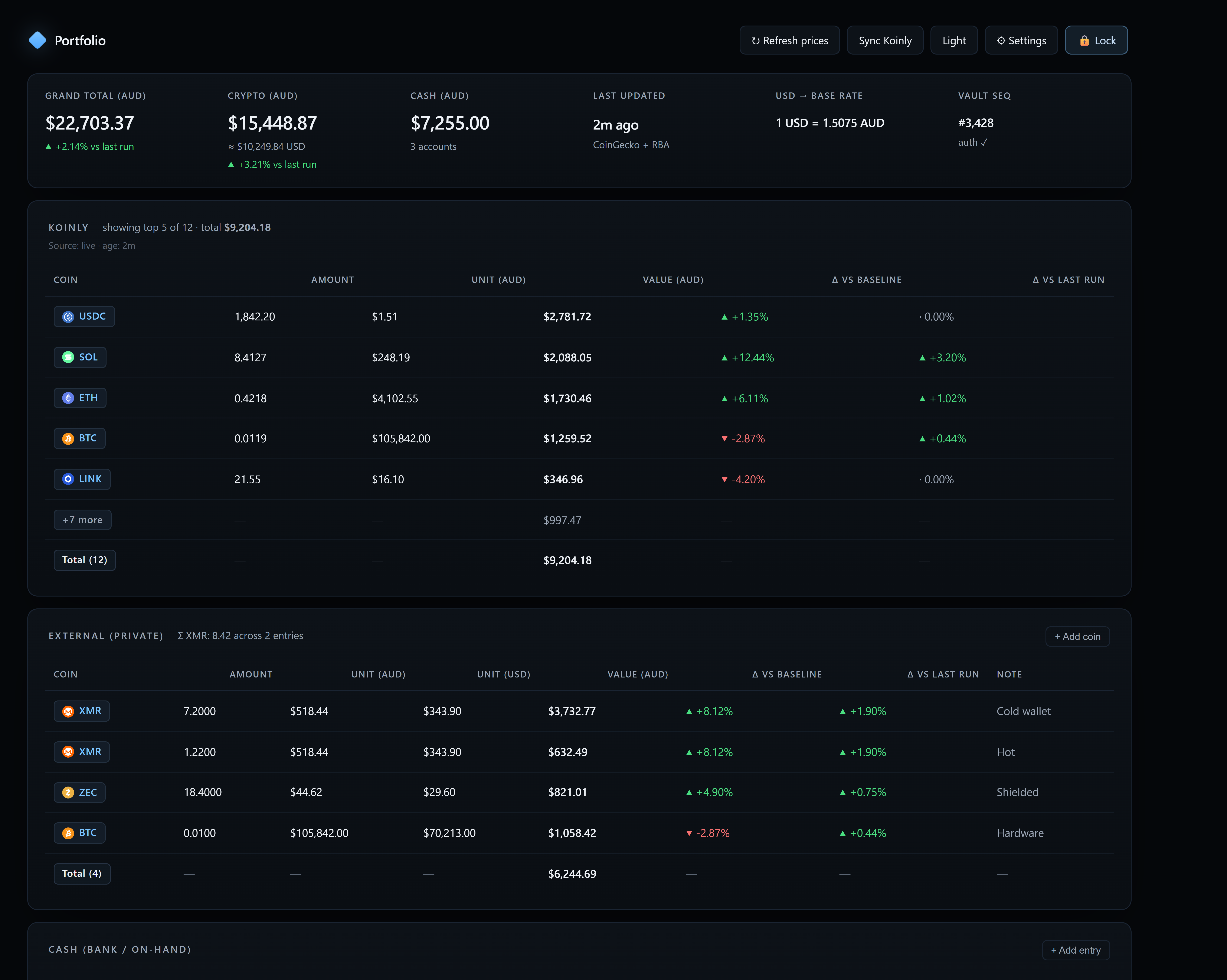
Rendered client-side from a locally decrypted vault. The server watched the ciphertext go by and learned nothing.
Sample numbers. Your vault, your keys, your privacy.
Most trackers only see crypto. Yours knows about your bank accounts too, so the number at the top is what you actually have.
AES-256-GCM with a key derived from your vault passphrase via scrypt. The plaintext never leaves your device — not to the server, not to a CDN, not to logs.
Face ID, Touch ID, Windows Hello, or a hardware key. WebAuthn PRF becomes your login secret — nothing to type, nothing to phish, nothing for an attacker to grind against.
Every write is bound to a monotonic sequence and authenticated with the same key that decrypts it. Rollback and cross-vault splice attacks both fail the same authentication check.
A stolen database gives an attacker no shortcut. The server holds a scrypt verifier and ciphertext; the key that unlocks either only ever lives in your device's memory.
Bring your Koinly holdings in as a live section — read-only, on your device, cached against your API key. Or don't; the app works entirely with hand-entered holdings if you'd rather nothing third-party ever sees your ledger.
Track crypto and cash in one view, priced in your local currency — USD, EUR, GBP, AUD, and more. Bank balances live next to XMR bags; the grand total is one number.
One tap renders a shareable card of your allocation and trajectory with the dollars stripped — the shape of your portfolio, without the size of your bag. Copy image, or copy image + caption, straight into Telegram or Signal.
Toggle between crypto-only, crypto + cash, and a per-asset view. The line is computed from your holdings against real historical prices, so growth isn't inflated by deposits — you see market movement on the coins you already own.
See it in action
This is the actual app after unlock. Every number below was rendered client-side from a locally decrypted vault. The server watched ciphertext go by.
How it works
No email, no exchange logins, no wallet addresses. Sign up, add what you hold, keep it locked — and take the whole thing with you.
Under the hood
Standard primitives, boringly configured. Nothing custom, nothing clever — the encryption module is published, its hash pinned, and the threat model is open for review. Read the security spec →
FAQ
No questions match — try a different search or category.
Yes. The full cryptographic core — the vault-core.js
your browser runs and the iOS Swift VaultCore — is
published for independent audit, and every primitive is standard
(AES-256-GCM, scrypt, HKDF-SHA-256) with published parameters. The
SHA-256 hash of the live module is pinned on the
verify build page so you can
confirm the bytes in your browser match the source.
Yes, at the level we can prove in the browser. Your holdings are encrypted on your device with AES-256-GCM before they ever leave. The server sees only a blob of ciphertext plus a monotonic sequence number. The key never touches the network.
Yes. StealthLedger is reachable as a Tor hidden service. The current onion address is shown in the Tor mirror section on the home page; open it in Tor Browser to use the same app without a clearnet hop.
It is a preview for now. The mirror is not always reachable yet while we prepare continuous hosting. If it times out, try again shortly. It stays on one stable address across restarts, so you can bookmark it.
Hardened privacy browsers disable WebAuthn, the browser API that passkeys depend on. Tor Browser disables it entirely, and iOS Onion Browser in its high security setting (which turns on Apple’s Lockdown Mode) does the same. Passkeys are also bound to the site’s normal domain, so a passkey created on the clearnet site can’t be reused on a .onion address.
The fix is to set a login passphrase before you need it. Open Settings, then Security, and add a login passphrase. Over Tor or with Lockdown Mode on, sign in with that passphrase or with your 12 word recovery phrase. Passkeys keep working as normal on the clearnet site.
Every account gets a permanent 12-digit account number when you sign up, like 1234-5678-9012. It's unique, immutable, and reveals nothing about you. You can log in with it forever, from any device.
A username is optional. It's a memorable handle you pick (letters, numbers, underscore, hyphen) that also works for login. You can set one at signup, add it later, or never set one at all.
Privacy trade-off: an account number is randomly assigned and leaks nothing about you. A username you pick is visible to anyone you share it with, and it can be linked back to you if it matches a handle you use elsewhere. If you'd rather stay fully anonymous, leave the username field blank and save your account number somewhere safe. If you want something easier to type, set a handle that isn't tied to your real identity.
Either way, both identifiers work for login. And you can always find your account number in Settings → Account.
Two passkeys, two jobs, so the server can never decrypt your data even if it wanted to.
“Sign-in” passkey — proves who you are to the server. When you tap it, the server checks a cryptographic proof and sends back your encrypted portfolio file. The server never sees anything inside that file.
“Vault” passkey — decrypts that file in your browser. The key it derives never leaves your device. Even if we got hacked or subpoenaed, we couldn’t hand over your portfolio because we don’t have the key.
You’ll see both entries labelled in iCloud Keychain / Google Passwords: 1234-5678-9012 · Sign-in and 1234-5678-9012 · Vault. Two passkeys per device is the design, not a bug.
Twelve English words drawn at random from a fixed 2048-word dictionary (the same BIP-39 list Bitcoin and Ethereum wallets use). Written down on paper it's your master backup: bring the phrase to any browser and you can sign back into your account and decrypt your vault, even if you've lost every device you own.
The phrase is generated in your browser from your operating system's cryptographic random-number generator. It's never sent to the server, not while you're signing up and not afterwards. The server stores a scrypt verifier of the phrase — enough to check you know it, not enough to guess it. 12 words gives you 128 bits of entropy, which is more than enough to be safe against any brute-force attack anyone can build.
The same phrase unlocks two things: it logs you in to the server (which then hands you your encrypted vault), and it decrypts the vault in your browser. One phrase, one thing to write down.
If you still have a device signed in, open Settings → Sign-in & security and add a passkey or a memorised passphrase as a fallback. Do it before you lose that device.
If you've already lost every device and the phrase, your vault is gone. We can't reset it — we don't have the key, and neither does anyone else. The one exception is if you saved the recovery code we showed you at signup: paste that in and it works as a last-resort unlock.
This is the security trade-off. Any system where staff can “reset” your account is a system where staff (or an attacker with staff access) can read your data. We opted out of that.
Yes. It's produced entirely in your browser by crypto.getRandomValues(), the WebCrypto API your browser exposes to the operating system's CSPRNG (Secure Enclave on Apple hardware, TPM on Windows, kernel RNG on Linux). There is no server round-trip, no analytics, no logging. The 128 random bits are mapped to 12 BIP-39 words using the standard checksum construction, so the phrase you get is a valid BIP-39 mnemonic that would work in other wallets that use the same derivation.
You can hit Regenerate as many times as you like before you write anything down — each draw is independent. Once you tick the “I've written it down” box and continue, we wipe the words from the page and from memory, so re-opening the signup form won't show them again.
On the login screen, type your account number (or username), then tap Recovery phrase on the toggle above the credential field. You get a grid of 12 numbered boxes, just like a hardware-wallet restore screen.
The fastest path: tap Paste phrase. That reads your clipboard and splits the phrase across all 12 boxes automatically. You can also paste into any single box — if you pasted more than one word, we’ll spread the tokens across the following boxes. Or just type: Space or Enter jumps to the next box, Backspace on an empty box jumps back.
Words are hidden by default (looks like a password). Tap Show words to double-check before you sign in, Clear to wipe every slot and start over. Once you tap Log in we join the words with single spaces, lowercase, and derive the login proof the same way signup did — so as long as the 12 words are correct and in order, it works regardless of how you typed them.
A one-off nudge that only appears when you’ve just unlocked with your 12-word recovery phrase AND your vault doesn’t have a passphrase or an unlock passkey yet. The recovery phrase is meant to be a break-glass, not a daily login — so we surface the two faster options in one place:
Both buttons deep-link into Settings → Sign-in & security and start the real flow — no shortcut around the confirm-and-reseal ceremony.
Two dismiss modes. Not now hides the card for this session — it comes back next time you unlock with the 12 words, in case you change your mind. Never show again silences it for this account on this device forever, for the user who genuinely prefers the recovery-phrase ceremony. Adding either credential also removes the card automatically. Your recovery phrase stays as your ultimate backup either way — nothing about adding a faster unlock deletes it.
Both prove who you are to the server; they’re just two different input shapes for two different kinds of secret.
Passphrase is a single field for a phrase you chose yourself — the one you set at signup or added later in Settings. You can hit the eye icon to reveal it, and the field respects your password manager (autofill works normally).
Recovery phrase is the 12-slot grid, meant for the phrase we generated for you at signup. Splitting it into 12 boxes means you can actually see each word, fix typos in-place, and confirm the position of each one — not possible with a single blob input.
Pick whichever matches how you signed up. If you added a memorised passphrase later in Settings, both paths work — use whichever secret you remember.
Default to recovery phrase. Twelve random words on paper is the most portable, most future-proof way to keep access — works on any browser, any device, no vendor lock-in, no biometrics that might not exist in ten years. This is why hardware wallets use the same design.
Pick passkey if you value tap-to-unlock over portability. Your device (Face ID, Touch ID, Windows Hello, a hardware key) holds a private key that never leaves it; on login the browser asks the device for a per-site secret and we stretch that with the same scrypt KDF the passphrase path uses. Nothing to remember, nothing to phish — but you're tied to the device.
Pick your own passphrase if you'd rather memorise a phrase you chose yourself, or if you plan to log in from browsers where passkey roaming is awkward.
There are actually two secrets, doing two different jobs. Login proves who you are to the server so it hands over your encrypted file. Unlock then decrypts the file inside your browser — the server never sees the unlock key. Both can be passkeys, or one passkey and one passphrase, or both passphrases. The most common setup is: login passkey + unlock passkey, so a normal visit is a single Face ID prompt.
Your vault passphrase stays as a fallback either way — it's what protects your holdings if you ever lose every device that holds a passkey.
Whichever credential you actually have. The login screen shows all methods at once so you don't have to hunt for yours:
If you're not sure which you set up, try the passphrase field first — it fails safely and tells you what to try next. Nothing about the login screen depends on the value you typed until you submit, so pasting an account number won't hide anything.
Because they do different jobs and only one of them can involve the server.
So there can be up to four credentials on a full account: a login passkey, a login passphrase, an unlock passkey, and a vault passphrase. Most people set one on each side and forget about it. Settings groups all four under “Sign-in & security,” with Quick sign-in for the day-to-day credentials and Vault unlockers for the local decrypt step.
Rule of thumb: if a screen is titled Log in, it wants a login credential. If it’s titled Unlock your vault, it wants an unlock credential. Adding a passkey on one side doesn’t add it on the other — they’re independent.
You added it on one side; the other side doesn’t have one yet. The most common case: you added a login passkey, signed in with a tap, and then the unlock screen asked for your passphrase because the vault itself doesn’t know about a passkey yet.
Fix it in Settings → Sign-in & security → Vault unlockers → Add unlock passkey. That wraps the vault key with a passkey-derived secret and appends it to the vault’s unlockers, so next time the unlock screen offers a passkey button instead of the passphrase field.
Restoring a backup carries over whatever unlockers the backup had, which is usually just the original passphrase. Add an unlock passkey once, after restore, and you’re done.
If your passkey syncs (iCloud Keychain, Google Password Manager, 1Password, etc.) it comes back with your account. If it doesn't — say it lived only on one hardware key — the account is stuck. StealthLedger can't reset it because it has no shared secret to reset to.
Practical mitigations, in order of effort:
Right now, the account is stuck. If we later add an email-based reset it will only reset the login, not decrypt anything — the vault contents are still gated by the vault passphrase.
A backup file is your encrypted vault as it was on the day you exported it: same vaultId, same unlockers, same holdings. Restoring it into a new account overwrites whatever vault that account currently has and hands you back the old one. You’ll unlock it with the backup’s vault passphrase or recovery code — not the passphrase you just used to sign up.
The usual flow when moving between accounts or coming from the old single-tenant version:
If the restore screen refuses your file, the fastest reset is Settings → Forget access token, log in again with the account passphrase, then retry.
No — the Koinly import is a bookmarklet you drag onto your desktop browser's bookmarks bar, and mobile browsers don't have one. Run the import once on a laptop or desktop and the resulting Koinly section syncs to your vault; from then on you can view it on mobile like any other section.
The server never stores your login secret. It stores a scrypt verifier with N=65536, r=8, p=1 — about 64 MB of memory per guess. A stolen database gives an attacker no help decrypting any vault; vault contents need the vault passphrase, which the server has never seen.
Your holdings are gone. Not "wait a while" gone — gone. There is no reset flow because there is no reset key. Set up a recovery code when you create the vault; that's the escape hatch.
Because the site serves you the JavaScript that touches your vault passphrase, a determined operator could push a poisoned build. We mitigate that with a strict Content-Security-Policy (no inline scripts, no third-party origins), a small hand-written codebase, and a published crypto spec you can diff against what your browser loads. The application code itself is proprietary; the encryption layer, threat model, and audit-log format are open for review.
The web vault is free. The app is free to download, with optional StealthLedger Pro subscriptions listed at A$6.99 monthly or A$49.99 annually in the Australian App Store. Prices vary by region. Check the App Store purchase screen for your local price and terms. Encryption, recovery and access to your own data do not require Pro.
No. You type in what you hold (or paste it from Koinly), and we fetch unit prices only — the same anonymous quote your browser can already get from CoinGecko. We never see, ask for, or store your exchange logins, wallet addresses, or API keys.
Yes. On iPhone, iPad and Apple silicon Mac, download the native app from the App Store. It requires iOS 16 or iPadOS 16 or later. On Mac it requires macOS 13 or later and an Apple M1 chip or newer. Unlock with Face ID or Touch ID on supported hardware.
On Android or any other mobile browser (Safari, Chrome, Firefox) the website works the same as on desktop and installs to your home screen with “Add to Home Screen.” Face ID / Touch ID / device passkeys give you the same one-tap unlock. The only thing you can’t do on mobile is the Koinly bookmarklet import — run that once on a laptop and the result syncs to your phone like anything else.
Same idea, narrower scope. StealthLedger is a purpose-built encrypted spreadsheet for crypto holdings — fewer features, smaller codebase. Bitwarden and 1Password are fully open source; StealthLedger publishes its crypto layer and threat model rather than the whole app.
Yes, any time. Settings → Account → Danger zone → Delete my account. Type your account number (or username, if you set one) to confirm. It’s a hard delete — encrypted vault, sessions, all of it. No grace period, no undo. Export your data first from Settings if you want a copy.
Yes. Settings → Export encrypted vault downloads your holdings as an encrypted file you can restore later, and Delete account is a real delete — there’s nothing to hold on to anyway, since we can’t read what we’re storing.
Yes. Portfolio → Share renders a card you can copy or download. In anonymous mode the card shows your allocation shape, top holdings, 24h change, and a normalised trajectory line — no dollar values, no y-axis, no account names. Coin symbols are optional too; leave them off and the card just shows ranked slices (“#1, #2, …”).
“Copy image + text” bundles the PNG and a share caption into one clipboard action, so a paste into Telegram / Signal / Discord drops both together — useful for community shares where you want the link included.
A one-tap toggle in the header that redacts every dollar value on screen without changing the chart shape — useful when checking your portfolio in public. Percentages, allocation, and 24h change still render; only the money is masked. Tap again to bring the numbers back. The state is remembered per device.
Yes, on the website. Press the rearrange button in the top bar. Every section gets a blue outline, then you tap one to pick it up, drag it where you want it, and tap it again to put it down. Press Done when you are finished. Rearranging in the native app is planned for a future update and is not included in the public 1.7 release.
If you would rather not drag anything, there is a plain list with up and down arrows in Settings under Dashboard layout, plus a reset to the original order.
Your layout is saved on that device only, so your phone and your laptop can be arranged differently, and it is deliberately not part of your encrypted vault. Sections you have hidden keep their place for when you turn them back on.
Yes. The chart above the holdings has three views: Portfolio (crypto + cash), Crypto only, or Cash only. In Cash mode the donut splits per account (Bank, Savings, Wallet…) instead of collapsing to a single cash slice, so you can see the shape of your cash side the same way as your crypto side.
By default the chip reads something like +A$120 (+24%) · market · 30D. That’s the market movement of your current basket over the selected range — i.e. if you’d held today’s coins the whole time, price movement alone would have this effect. It’s not personal P/L: adding a coin today and immediately seeing “+24%” is the coin’s 30-day chart, not your gain.
Head to Settings → P/L baseline → Reset P/L to now and the chip switches to “since <today’s date>”. The “market · 30D” suffix disappears and every future delta is measured against today’s total instead. Clear the baseline any time to go back to the market-view.
The baseline is stored in your browser, scoped to your account number, and never leaves this device. Change display currency and the chip falls back to range-start until you reset again — we don’t have client-side historical FX to convert an old baseline reliably.
Once you’re signed in, open Settings → Account. Your 12-digit account number sits at the top with a Copy button. It’s also on the “Save these” screen right after signup — the Copy both as text button there gives you account number and recovery code as one block ready to paste into a password manager.
If you signed up before we introduced account numbers, one gets assigned to you automatically the next time your browser talks to the server — open Settings, wait a beat, and it appears.
None. No trackers, no pings, no third-party scripts.
The app supports Face ID or Touch ID unlock on supported hardware. Once your device is remembered, its vault key is protected in Keychain and the device signs a challenge to restore your session.
The app for iPhone, iPad and Apple silicon Mac is live on the App Store. Install it and sign in to your existing StealthLedger account. Passkeys are also supported.
Sign in on the website, open Settings → Devices → Pair iPhone, and you’ll see a QR code that expires in about a minute. Open the StealthLedger app on your phone, scan the code, and confirm the pairing with Face ID. The QR carries a one-time challenge that the phone signs; the actual vault key is derived on the phone from your existing unlocker and never crosses the network in plaintext.
After pairing, the phone appears in the same Devices list. You can revoke it from either the phone or the web at any time; revocation takes effect on the next request.
No. The website stealthledger.io is the full product on its own: sign up, store your vault, chart your holdings, use passkeys, everything. The native app is a companion for iPhone, iPad and Apple silicon Mac, with biometric unlock on supported hardware. Both talk to the same encrypted vault, so what you add on one shows up on the other.
No. The iOS build contains no analytics SDK, no crash reporter, no third-party tracker. The only network calls the app makes are to the same StealthLedger API the website uses, over TLS, sending the same opaque encrypted blobs. See the current App Privacy section on the App Store listing for the published data disclosures.
Yes. Settings → Security → Rotate vault key generates a brand-new vault encryption key on your device, re-encrypts your whole vault under it, and re-wraps the new key into every unlocker you can re-verify (your passphrase and 12-word recovery phrase). The old vault key stops working immediately — a stolen or compromised phone can no longer read your balances.
Rotation is an emergency action: remembered iPhone access and passkeys are removed from the vault, so reconnect each phone from the website by QR and re-add your passkey afterwards. Your passphrase and recovery phrase stay the same and still open the vault. The server never sees the old or new key — the re-encryption happens entirely in your browser.
Rotation invalidates the old vault key so a compromised device can no longer decrypt your balances. Fully revoking a compromised device’s server-side session and signing key is a follow-up — for now, also change your passphrase if you believe the secret itself leaked.
Support the project
StealthLedger has no VC, no ads, no tracking, no upsell tier. If it saves you an hour or a headache, an XMR tip keeps the servers up and the roadmap ours to write.
Tor mirror
StealthLedger is reachable as a Tor hidden service. Open the address below in Tor Browser for the same app without a clearnet hop.
Two minutes and one passkey prompt away. If signups need an invite right now, ask a friend who already has an account to mint you a one-time link — it pre-fills the code so you skip the paperwork.
Paste the access token for your vault. This only lets the device reach the encrypted file — it can't decrypt anything on its own.
It's the VAULT_ACCESS_TOKEN you set in your deploy's
environment variables. Opening the install link from your desktop
(#t=…) fills this in automatically and then wipes it from
the address bar.
Your encrypted holdings, on a server that can’t read them.
Welcome back, . Your session expired — log in to reach your vault. Not you? Sign in to a different account
New here? Create an account · How does this work?
StealthLedger is in public preview — a privacy-first crypto tracker where the server never sees your holdings. Your feedback shapes what ships next.
About 10 seconds. No name, no email needed — just a random account number and your choice of passkey or passphrase.
Already have an account? Log in · How does this work?
Loading…
Pick who can create new accounts. Changes take effect immediately for new visitors — existing users are unaffected.
SIGNUP_MODE env var takes over again.
Open a capped signup window — for example, ‘50 signups, no code needed’. Set the mode above to Preview window to make this the gate for new signups. Two shapes:
PREVIEW-2026) that users must type. Same cap + one-per-IP guardrails.Rotating or clearing the code doesn’t wipe the redeemers list — use Reset redemptions to open a fresh pool of slots.
Signup link — auto-fills the code:
Loading…
Monero-only for now. Empty this field to hide the donate card on
the FAQ page. Standard mainnet addresses start with 4
or 8 and are 95 characters long; testnet or unusual
address types are rejected.
The Tor hidden service address advertised on the site. Until you set
one here, the site falls back to the current preview address. Empty
this field to hide the onion section entirely. Valid v3 addresses are
56 characters plus .onion.
CoinGecko is called at most once per fresh window per coin+currency combo, shared across every open tab and every function instance via Cloudflare KV. If providers fail, available cached prices can be served for up to the stale window, clearly marked as stale. Without a usable cache, live prices remain unavailable. All knobs here take effect within ~30 seconds; no redeploy needed.
Loading cache stats…
Loading…
Loading…
Signed in as . Pick how you'll unlock this vault on this device — your face, your fingerprint, or a passphrase you remember.
Everything is encrypted on this device before it's uploaded. Nobody operating the server can read it — including us. That also means if you lose your unlock method AND your recovery code, it's unrecoverable.
Two things you'll need if you ever sign in from a new device or recover from a lost passkey. The account number identifies you to the server; the recovery code is the last-resort key that decrypts your vault.
Immutable, unique to you. You can always find this in Settings later.
Shown once. Never stored on our servers in readable form.
Paste into your password manager or a note. Both labelled, on separate lines.
Your data is decrypted locally. Nothing on our servers can read it without your passphrase or passkey.
Signed in as
or
Deriving key…
—
The app code on the server has changed since this device pinned it. Nothing new runs until you accept it.
A short hash of the app files this device has pinned. If it changes unexpectedly, nothing new runs until you accept the update — so a silent replacement of the code between logins is visible here.
The value is computed and shown by the app itself, which means it detects unexpected changes rather than proving any single load was safe.
Add some holdings first, and this chart will populate.
No priced crypto yet.
Prices haven't loaded yet.
No private coins yet.
Total —
Read-only here. To refresh, open Settings → Koinly import and click
your bookmarklet from an app.koinly.io tab. Your Koinly
cookies never leave that tab.
Total —
No cash entries yet.
Total —